Host ASP.NET Core 8 App on IIS — Step-by-Step Deployment Guide (2025 Updated)
Hosting an ASP.NET Core 8 application on IIS is one of the most reliable self-hosting options for enterprise applications, admin portals, ERPs, and intranet systems.
In this complete 2025 deployment guide, you will learn:
In this complete 2025 deployment guide, you will learn:
- ✔ How to install the .NET 8 Hosting Bundle
- ✔ How to publish your ASP.NET Core project
- ✔ How to configure IIS for .NET 8 apps
- ✔ How to set folder permissions
- ✔ How to fix HTTP Error 500.30
- ✔ How to verify your deployment
If you missed the previous tutorial, check it here:
👉 Entity Framework Core CRUD Operation with Repository Pattern — Complete Guide
Let’s begin.
🔥 Why Host ASP.NET Core App on IIS? (Benefits in 2025)
IIS is still one of the most popular hosting environments because:
- Easy to deploy
- Simple hosting configuration
- Supports Windows Authentication
- Built-in logging
- Reliable for enterprise-level hosting
- Great for intranet & internal systems
🧱 Step 1: Install .NET 8 Hosting Bundle on the Server
You must install this, otherwise the app will NOT run on IIS.
Download:
👉 https://dotnet.microsoft.com/en-us/download/dotnet/8.0
Install:
- ✔ .NET Runtime
- ✔ ASP.NET Core Runtime
- ✔ Hosting Bundle
This installs:
- The .NET 8 runtime
- ASP.NET Core Module
- IIS integration middleware
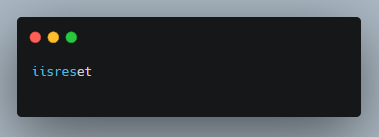
Restart IIS:
🛠️ Step 2: Publish Your Application (Release Mode)
In Visual Studio:
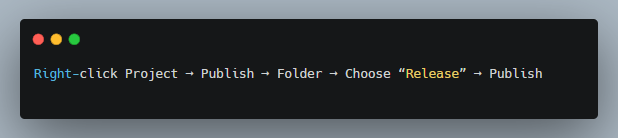
Your output folder contains:
- *.dll
- web.config
- wwwroot
- dependencies
📁 Step 3: Create IIS Website & Bind Domain
Open IIS Manager → Sites → Add Website
Fill details:
- Site Name: MyCoreApp
- Physical Path: Browse → select publish folder
- Port: 80 or another
- Host Name: (optional for domain)
Click OK.
🔧 Step 4: Set Application Pool Settings
Go to:
IIS → Application Pools → Select your App Pool
Set:
✔ .NET CLR Version = No Managed Code
Because ASP.NET Core uses Kestrel, not the old classic pipeline.
✔ Managed Pipeline Mode = Integrated
✔ Start Mode = AlwaysRunning
✔ Idle Timeout = 0 (optional for long-running APIs)
🔐 Step 5: Set Folder Permissions (VERY IMPORTANT)
Right-click your publish folder → Properties → Security → Edit →
Give permissions to:
✔ IUSR
✔ IIS_IUSRS
Allow:
✔ Read
✔ Write (if uploading files)
✔ Modify (if API creates or updates files)
Without permissions, you’ll get:
- 500.30 errors
- 403 Forbidden
- Access denied on logs or uploads
🚀 Step 6: Configure web.config (Auto-generated)
Example:
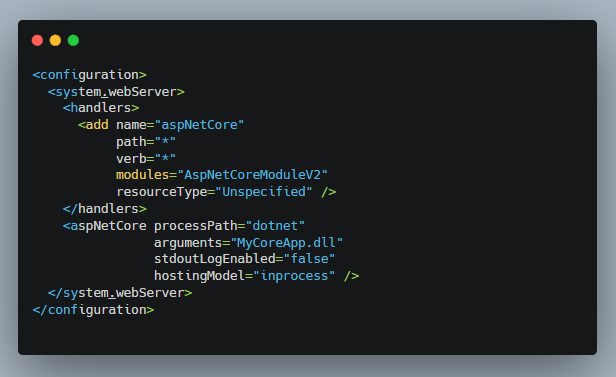
🌐 Step 7: Browse Your Application
Open browser:
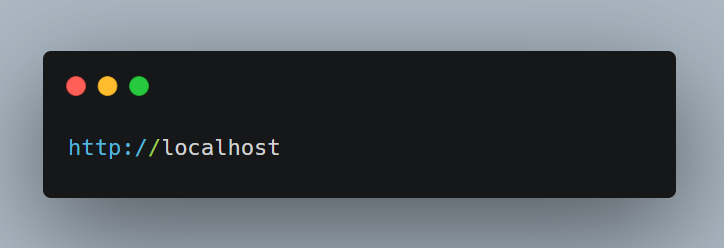
or
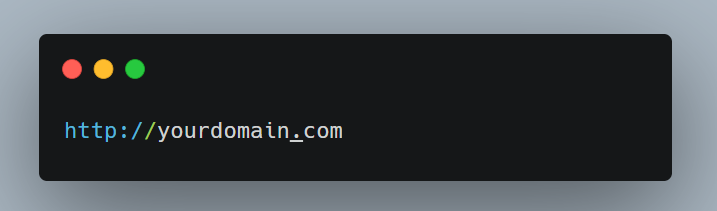
If everything is correct, your app loads instantly.
🔥 Common IIS Errors & Fixes (ASP.NET Core 8)
❌ 500.30 – ANCM In-Process Startup Failure
Fix:
- Missing Hosting Bundle
- Wrong .NET version
- Missing web.config
❌ 502.5 – Process Failure
Fix:
- Wrong folder permissions
- App crashed on startup
❌ 404 Not Found
Fix:
- Wrong website binding
- Wrong physical path
❌ Access Denied
Fix:
- Missing IIS_IUSRS permissions
- Upload folder not accessible
🧪 Enable Logging in IIS (Troubleshooting Made Easy)
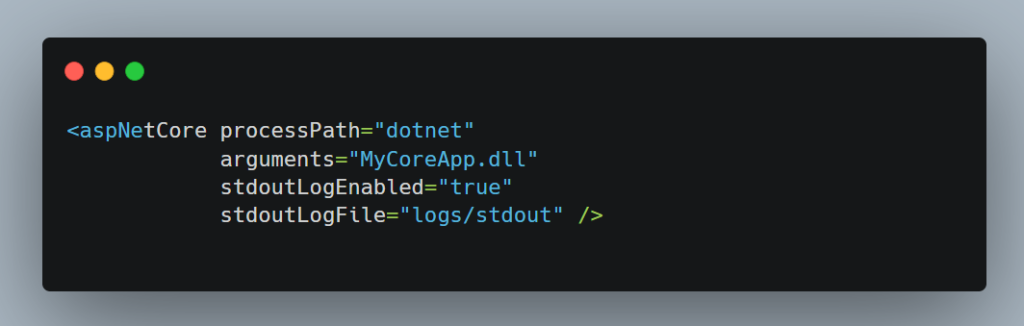
Enable stdout logging:
Edit web.config:
Create folder:
Give write access.
⚡ Auto-Restart App After Crash (Best for Production)
In Application Pool → Advanced Settings:
- Rapid-Fail Protection → Disabled
- Start Mode → AlwaysRunning
Ensures your Web API or website never goes down.
- host asp.net core 8 on iis
- deploy .net 8 application to iis
- asp.net core 8 iis deployment
- dotnet 8 publish to iis
- how to deploy web api to iis
- install hosting bundle for .net 8
- configure iis for asp.net core
- troubleshoot http error 500.30
❓ FAQ — ASP.NET Core 8 IIS Hosting
1. Does ASP.NET Core 8 support IIS hosting?
Yes, with the Hosting Bundle installed.
2. What is Hosting Bundle?
It installs the ASP.NET Core Module required for IIS.
3. Why does my app show 500.30 error?
Usually due to missing Hosting Bundle or wrong permissions.
4. Should I use No Managed Code?
Yes. ASP.NET Core apps don’t run on the Classic .NET pipeline.
5. Can I host multiple .NET Core apps on IIS?
Yes, IIS supports multiple sites and ports.