
🚀 Deploy ASP.NET Core App to Azure App Service (Step-by-Step Guide – 2025)
Deploying your ASP.NET Core application to Azure App Service is one of the best ways to host modern web apps and APIs with high scalability, security, and global availability.
In this complete step-by-step tutorial, you will learn:
✅ How to deploy ASP.NET Core to Azure
✅ How to create Azure App Service
✅ How to publish from Visual Studio
✅ How to configure environment variables
✅ How to enable logging & monitoring
✅ Best practices for production deployment
If you are hosting locally or on IIS, read this first:
👉 Host ASP.NET Core 8 App on IIS – Complete Deployment Guide
🔥 Why Deploy ASP.NET Core Apps to Azure App Service?
Azure App Service is Microsoft’s fully managed cloud platform for hosting:
✔ ASP.NET Core Web Apps
✔ REST APIs
✔ Microservices
✔ SaaS applications
🚀 Benefits:
- No server maintenance
- Auto-scaling
- Built-in security
- Easy CI/CD
- Free SSL
- High uptime (99.95%)
- Pay-as-you-go
🧱 Step 1: Create Azure App Service
🔹 Go to Azure Portal
🔹 Click:
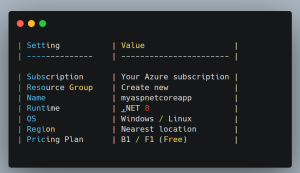
Create a resource → Web App
Fill the following:
🛠️ Step 2: Publish ASP.NET Core App from Visual Studio
Steps:
- Open your ASP.NET Core project
- Right-click project → Publish
- Select Azure
- Choose Azure App Service (Windows)
- Select your App Service
- Click Publish
✅ Visual Studio will:
- Build the project
- Upload files
- Configure hosting
- Launch your app in browser
🚀 Deploy ASP.NET Core App to Azure Using CLI (Optional)
For developers who prefer CLI:
- az login
- az webapp up –name MyAspNetApp –resource-group MyRG –runtime “DOTNET|8.0”
Your app will be live in minutes.
🔧 Step 3: Configure App Settings (Very Important)
Go to:
Azure Portal → App Service → Configuration → Application Settings
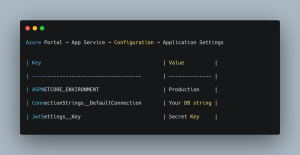
Click Save → Restart App
🔐 Enable HTTPS & Security
Azure automatically provides:
-
Free SSL certificate
-
HTTPS redirect
-
TLS encryption
To enforce HTTPS:

📊 Step 4: Enable Logs & Monitoring
Go to:

Enable:
-
Application Logs
-
Web Server Logs
-
Detailed Error Messages
This helps debug:
- 500 errors
- Startup failures
⚡ Auto Scaling ASP.NET Core App
Go to:
App Service → Scale Out
Configure rules:
- CPU > 70%
- Requests > 1000
- Time-based scaling
Azure automatically adds or removes servers.
🔥 Common Azure Deployment Errors (With Fixes)
❌ Error 500.30 – Application Failed to Start
✔ Install correct .NET version
✔ Check appsettings.json
✔ Check logs
❌ 403 Forbidden
✔ Check authentication
✔ Enable HTTPS
✔ Check App Service permissions
❌ Swagger Not Loading
✔ Enable UseSwagger()
✔ Set environment properly
❓ FAQ – ASP.NET Core Azure Deployment
1. Is Azure App Service free?
Yes, Azure offers a Free Tier (F1) for testing.
2. Can I deploy .NET 8 apps to Azure?
Yes, Azure fully supports .NET 8.
3. Which is better – IIS or Azure?
Azure is better for scalability and cloud hosting.
4. Can I use GitHub Actions for deployment?
Yes, Azure integrates directly with GitHub.
5. Is Azure good for production apps?
Absolutely. Many enterprise apps run on Azure.