

Host ASP.NET Core 8 App on IIS — Step-by-Step Deployment Guide (2025 Updated)
Hosting an ASP.NET Core 8 application on IIS is one of the most reliable self-hosting options for enterprise applications, admin portals, ERPs, and intranet systems.
In this complete 2025 deployment guide, you will learn:
In this complete 2025 deployment guide, you will learn:
 How to install the .NET 8 Hosting Bundle
- How to publish your ASP.NET Core project
- How to configure IIS for .NET 8 apps
- How to set folder permissions
- How to fix HTTP Error 500.30
- How to verify your deployment
If you missed the previous tutorial, check it here:
 Entity Framework Core CRUD Operation with Repository Pattern — Complete Guide
Let’s begin.
 Why Host ASP.NET Core App on IIS? (Benefits in 2025)
IIS is still one of the most popular hosting environments because:
- Easy to deploy
- Simple hosting configuration
- Supports Windows Authentication
- Built-in logging
- Reliable for enterprise-level hosting
- Great for intranet & internal systems
 Step 1: Install .NET 8 Hosting Bundle on the Server
You must install this, otherwise the app will NOT run on IIS.
Download:
https://dotnet.microsoft.com/en-us/download/dotnet/8.0
Install:
- .NET Runtime
- ASP.NET Core Runtime
- Hosting Bundle
This installs:
- The .NET 8 runtime
- ASP.NET Core Module
- IIS integration middleware
Restart IIS:
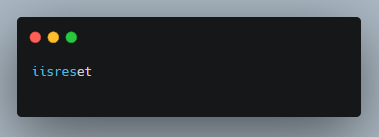
 Step 2: Publish Your Application (Release Mode)
In Visual Studio:
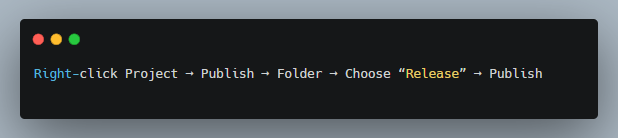
Your output folder contains:
- *.dll
- web.config
- wwwroot
- dependencies
 Step 3: Create IIS Website & Bind Domain
Open IIS Manager → Sites → Add Website
Fill details:
- Site Name: MyCoreApp
- Physical Path: Browse → select publish folder
- Port: 80 or another
- Host Name: (optional for domain)
Click OK.
 Step 4: Set Application Pool Settings
Go to:
IIS → Application Pools → Select your App Pool
Set:
.NET CLR Version = No Managed Code
Because ASP.NET Core uses Kestrel, not the old classic pipeline.
Managed Pipeline Mode = Integrated
Start Mode = AlwaysRunning
Idle Timeout = 0 (optional for long-running APIs)
 Step 5: Set Folder Permissions (VERY IMPORTANT)
Right-click your publish folder → Properties → Security → Edit →
Give permissions to:
IUSR
IIS_IUSRS
Allow:
Read
Write (if uploading files)
Modify (if API creates or updates files)
Without permissions, you’ll get:
- 500.30 errors
- 403 Forbidden
- Access denied on logs or uploads
 Step 6: Configure web.config (Auto-generated)
Example:
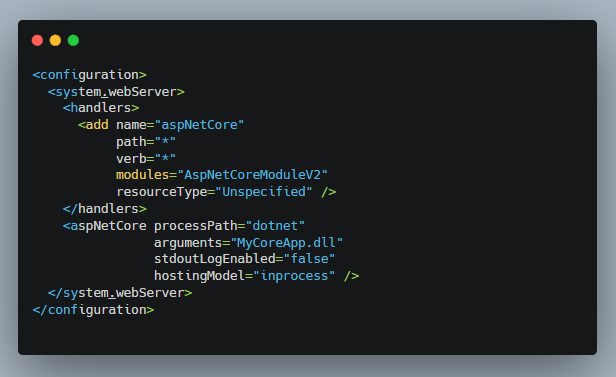
 Step 7: Browse Your Application
Open browser:
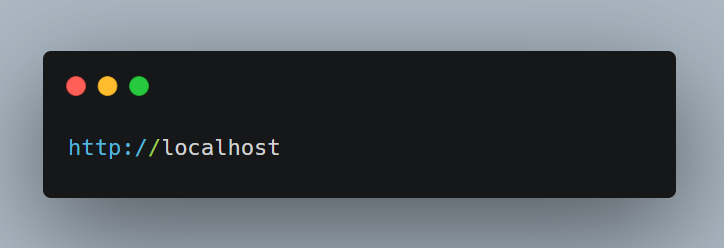
or
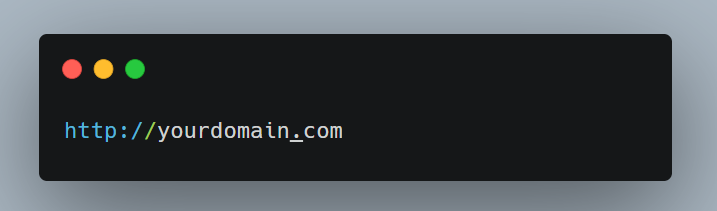
If everything is correct, your app loads instantly.
Common IIS Errors & Fixes (ASP.NET Core 8)
 500.30 – ANCM In-Process Startup Failure
Fix:
- Missing Hosting Bundle
- Wrong .NET version
- Missing web.config
502.5 – Process Failure
Fix:
- Wrong folder permissions
- App crashed on startup
404 Not Found
Fix:
- Wrong website binding
- Wrong physical path
Access Denied
Fix:
- Missing IIS_IUSRS permissions
- Upload folder not accessible
 Enable Logging in IIS (Troubleshooting Made Easy)
Enable stdout logging:
Edit web.config:
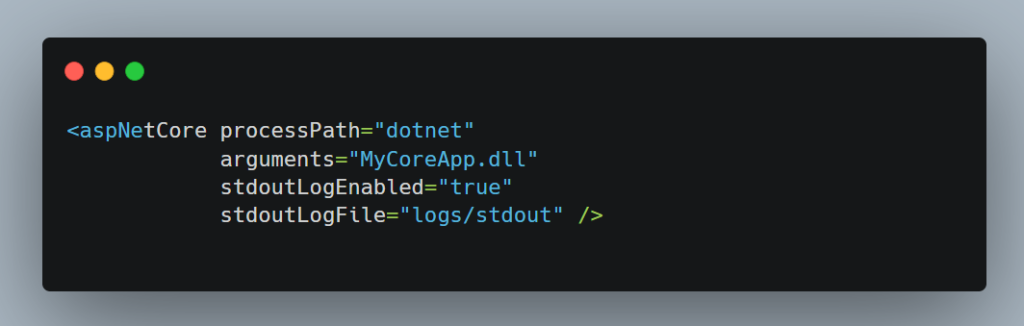
Create folder:

Give write access.
 Auto-Restart App After Crash (Best for Production)
In Application Pool → Advanced Settings:
- Rapid-Fail Protection → Disabled
- Start Mode → AlwaysRunning
Ensures your Web API or website never goes down.
- host asp.net core 8 on iis
- deploy .net 8 application to iis
- asp.net core 8 iis deployment
- dotnet 8 publish to iis
- how to deploy web api to iis
- install hosting bundle for .net 8
- configure iis for asp.net core
- troubleshoot http error 500.30
 FAQ — ASP.NET Core 8 IIS Hosting
1. Does ASP.NET Core 8 support IIS hosting?
Yes, with the Hosting Bundle installed.
2. What is Hosting Bundle?
It installs the ASP.NET Core Module required for IIS.
3. Why does my app show 500.30 error?
Usually due to missing Hosting Bundle or wrong permissions.
4. Should I use No Managed Code?
Yes. ASP.NET Core apps don’t run on the Classic .NET pipeline.
5. Can I host multiple .NET Core apps on IIS?
Yes, IIS supports multiple sites and ports.
🥴 Available Bitcoin. Next - yandex.com/poll/WRVjqbSX2yscgTuFhiPPi5?hs=f0a3ac8b50fd22587b8378cfc9e28c1c& 🥴
3auoxo
Download Wp Themes
Hey There. I found your blog the use of msn. This is a very neatly written article. I’ll make sure to bookmark it and return to learn extra of your helpful info. Thanks for the post. I will certainly comeback.
unlimited wordpress themes
Of course, what a fantastic site and revealing posts, I surely will bookmark your blog.Best Regards!
vxqtywzqgf
liwdrhxenexgqmxvmzzkkffhrzxevt
MichaelAnted
да да да привет привт
CurtisGum
фриланс заказы Удаленная работа открывает новые горизонты для современного специалиста, предлагая гибкость и возможность построить карьеру из любой точки мира. От вакансий ВКонтакте до специализированных бирж фриланса, рынок труда изобилует возможностями для тех, кто ищет занятость на дому.
RayfordKer
Brain lab The Brain, Mind and Consciousness laboratory investigates high-level cognitive processes using brain imaging (fMRI), behavior and introspective reports. We are particulary interested in areas of overlap, as well as separation, between psychological processes involved in social cognition, mechanical reasoning, attention and self-awareness.
page
No matter if some one searches for his required thing, therefore he/she desires
to be available that in detail, thus that thing is maintained over here.
Hershelroore
сервисы Такая модель потребления позволяет получать регулярный доступ к необходимым продуктам или услугам, зачастую с существенной экономией. Разнообразие сервисов, доступных онлайн, поражает воображение, удовлетворяя практически любые потребности современного человека.
Arthurjag
https://www.zorini.ru/ zorini
Cliftonsot
mafia casino Bienvenue sur Mafia Casino, le domaine des jeux d’argent en ligne. Decouvrez notre avis detaille, le processus de connexion securise et des bonus exclusifs. Site officiel 2026.
JamesSof
диван раскладной Посетите наш мебельный магазин и убедитесь сами в высоком качестве и превосходном дизайне нашей продукции.
Richardped
Блогеры В современном мире, где информация распространяется с невероятной скоростью, новости становятся не просто отражением событий, но и мощным инструментом формирования общественного мнения. Журналисты, следуя высоким стандартам профессии, стремятся донести до читателей важные и полезные данные, делая сложные темы доступными и понятными.
Moshewropy
скачать игры по прямой ссылке Возможность скачать игры с Яндекс.Диска по прямой ссылке ценится за надежность и высокую скорость загрузки.
Allendam
https://spisok-kreditov.ru/02_kredit-nalichnymi.html кредит наличными с возможностью сравнить условия – на список-кредитов.ру можно сравнить условия
FrankFix
kraken зайти без kra29
HaroldWap
лакибир казик Luckybear не зря зовется “лаки” – здесь статистика показывает, что игроки чаще уходят с прибылью, благодаря честным алгоритмам и регулярным акциям.
Carlosoccup
бездепозитный бонус игровые автоматы с выводом57 дают бездепозитный бонус58
MartinFum
экскурсии спб санкт петербург лучшие экскурсии в петербурге
HerbertSturf
страхование имущества юр лиц ОСАГО (обязательное страхование гражданской ответственности автовладельцев) — это обязательный вид страхования, который покрывает ущерб, причиненный жизни, здоровью или имуществу других участников дорожного движения по вине застрахованного водителя.
Rogeracazy
https://t.me/detivetrachat detivetrachat
Leroypet
электрокорунд белый Не ищите компромиссов, если вам нужен абразив, купить электрокорунд от проверенных поставщиков – значит инвестировать в надежность и долговечность ваших изделий
BryanTon
Анализы жк Крымская Роза Синекс» стал еще ближе! Мы открылись в ЖК Крымская Роза. По адресу Проспект Александра Суворова 107, пом 2К Теперь жители микрорайона могут сдавать любые анализы без очередей и в шаговой доступности. Современное оборудование Быстрые и точные результаты Широкий спектр исследований: от общих анализов крови до сложных До сложных генетических панелей. ! Более 3500 анализов. Удобный график работы В новом пункте «Синекс» доступны: Клинические исследования крови и мочи Биохимия Гормональные профили Диагностика инфекций Генетические панели Мы рядом, когда это важно! Телефон горячей линии 8 800 333 01 09
zryxziupvw
ewgdlmtuopinyjmgxrnmuoymziyzsh
DanielNub
http://womantowoman.tv/
RaymondSinia
https://kuzovkirov.ru
Jamestiz
ПТСР, психологическая травма, горе и тяжёлая утрата Наш подход основан на глубоком уважении к личности, конфиденциальности и стремлении к достижению устойчивых позитивных изменений, позволяя каждому клиенту раскрыть свой потенциал и жить полноценной, гармоничной жизнью.
DouglasDus
Помощь с проектом Тут вы найдёте всё необходимое: от генерации текста до подбора тем, что сделает процесс написания учебных работ простым и эффективным.
Cecilnib
удаленная работа на дому вакансии фриланс для начинающих
Donaldveddy
информационные киоски
Herbertbox
питомник садовых растений питомник растений новый
ElmerDaype
Мережевий простір України презентує новий навігаційний інструмент — навігатор по сайтам, метою якого є зібрати різнопланові онлайн-майданчики держави.
Зазначений ресурс збирає адреси веб-сторінок, що розкривають широкий спектр тем. До каталогу увійшли сайти загальнодержавного значення, а також ті, що фокусуються на розвитку локальних територій.
Місія проєкту — запропонувати простий стартовий майданчик для користувачів, які потребують перевірені українські джерела інформації на будь-який смак: від новинної стрічки та політики до глибоких історичних досліджень, молодіжної тематики, лайфстайлу, активізму та аналітики.
Каталог розрахований на масового відвідувача та готовий до комунікації з засобами масової інформації, журналістами та компаніями, що прагнуть реклами, які прагнуть бути помітними в інформаційному просторі України
Vernonlip
https://howwwblog.info/
Stevenzom
купить лучший ручной отпариватель для одежды Купить ручной отпариватель для одежды – это значит получить в свое распоряжение компактное и мощное устройство, которое легко уместится в чемодане и поможет поддерживать ваш гардероб в идеальном состоянии где бы вы ни находились. Для тех, кто ищет максимальную производительность и удобство, купить напольный отпариватель для одежды станет идеальным решением, ведь благодаря большой мощности и вместительному резервуару для воды, он способен обрабатывать большие объемы одежды, будь то деловые костюмы, вечерние платья или домашний текстиль.
Anthonytrert
травля тараканов обработка от тараканов
LouisSlern
https://mostbet-zerkaloonline.buzz/en/dog-house-megaways-demo-fruitcocktailrus/
Vernonlip
https://howwwblog.info/
LouisSlern
https://mostbet-zerkaloonline.buzz/kk/big-bass-demo-v-rublyah-otzyvy/
Francisliams
экскурсии спб санкт петербург водные экскурсии в санкт петербурге
LouisSlern
https://mostbet-zerkaloonline.buzz/tr/%f0%9f%8f%92-%d1%82%d1%80%d0%b0%d0%ba%d1%82%d0%be%d1%80-%d0%be%d0%b1%d1%8b%d0%b3%d1%80%d0%b0%d0%bb-%d0%bc%d0%b5%d1%82%d0%b0%d0%bb%d0%bb%d1%83%d1%80%d0%b3-%d0%b2-%d0%ba%d1%85/
Vernonlip
https://howwwblog.info/
Anthonytrert
травля тараканов уничтожение тараканов
Francisliams
интересные экскурсии в спб спб экскурсии по городу
Vernonlip
https://howwwblog.info/
Anthonytrert
обработка от тараканов травля тараканов обработка от тараканов
LouisSlern
https://mostbet-zerkaloonline.buzz/dog-house-slot-demo-doghouse537/
Vernonlip
https://howwwblog.info/
Francisliams
интересные экскурсии в спб эксклюзивные экскурсии в санкт петербурге
Anthonytrert
уничтожение тараканов уничтожение тараканов
Vincentdrosy
лучшие крипто игры с выводом денег Ищете где фармить крипту без вложений? Smart Money Crypto — ваш проводник в мир аирдропов, тапалок и криптоигр. Ежедневные обзоры, инструкции для новичков, подборки актуальных проектов. Узнайте, как получить первый доход уже сегодня. Жмите на ссылку и начинайте!
AndrewjiB
кайт сафари в египте
Vincentdrosy
где лучше читать новости криптовалют Ищете где фармить крипту без вложений? Smart Money Crypto — ваш проводник в мир аирдропов, тапалок и криптоигр. Ежедневные обзоры, инструкции для новичков, подборки актуальных проектов. Узнайте, как получить первый доход уже сегодня. Жмите на ссылку и начинайте!
AndrewjiB
айтсерфинг в хургаде
Vincentdrosy
где лучше читать новости криптовалют Ищете где фармить крипту без вложений? Smart Money Crypto — ваш проводник в мир аирдропов, тапалок и криптоигр. Ежедневные обзоры, инструкции для новичков, подборки актуальных проектов. Узнайте, как получить первый доход уже сегодня. Жмите на ссылку и начинайте!
BryantSar
ко ланте остров ко ланта
AndrewjiB
кайт школа в крыму
Vincentdrosy
как получить аирдроп пошагово Готовы начать зарабатывать на крипте, но не знаете с чего? Smart Money Crypto — канал, где новички становятся профи. Аирдропы, тапалки, фармилки, обзоры криптоигр и майнинг на телефоне — всё в одном месте. Забирайте свой первый доход уже сегодня по ссылке ниже!
BryantSar
ко ланте ко ланта
AndrewjiB
кайт Хургада Египет
DerekRix
https://docs.google.com/spreadsheets/d/1RKf68b7MWHRgjE9AADeqWJ-q9EEo1c1neZiB9rxSxxM/edit?usp=sharing
Gregoryturse
мемориальные доски Закажите мемориальную доску для увековечивания памяти героев, учреждений или как фасадное/интерьерное оформление с доставкой по России.
DerekRix
https://docs.google.com/spreadsheets/d/1RKf68b7MWHRgjE9AADeqWJ-q9EEo1c1neZiB9rxSxxM/edit?usp=sharing
Gregoryturse
доски мемориальные Наша продукция идеально подходит для увековечивания памяти героев, выпускников, учреждений, а также может быть использована как интерьерное или фасадное оформление зданий.
Gregoryturse
фасадные мемориальные доски Выбирайте из широкого ассортимента материалов и стилей: от имитации натурального камня до современных композитных панелей с полноцветной печатью и портретами.
BryantSar
остров ко ланта остров ко ланта
Gregoryturse
фасадные мемориальные доски Мы изготовим мемориальные доски по вашим индивидуальным требованиям, будь то памятная доска герою, выпускнику или учреждению.
DerekRix
https://docs.google.com/spreadsheets/d/1RKf68b7MWHRgjE9AADeqWJ-q9EEo1c1neZiB9rxSxxM/edit?usp=sharing
MerrillMah
споты кайтсерфинга Хургада
Leonardpah
остров ко ланта ко ланте
MerrillMah
кайт в хургаде
Leonardpah
остров ко ланта остров ко ланта
MerrillMah
кайт
Leonardpah
ко ланта ко ланта
Leonardpah
ко ланте остров ко ланта
RobertPoups
кайт сафари 2026
RobertPoups
кайт станция
RobertPoups
кайт сафари в египте 2026
Milesdix
https://unibetsru.com/
Thomasbed
купить капсульную кофеварку для дома недорого Приобрести капсульный дом можно по всей России, включая Москву и Санкт-Петербург, как готовое решение “под ключ” или в виде модульной конструкции, а также ознакомиться с ценами и отзывами на различные модели, от эконом-вариантов до премиальных решений
DouglasSkege
клиника наркологии Наши услуги доступны для всех, кто ищет качественное и платное лечение, гарантируя конфиденциальность и индивидуальный подход
VinceMof
https://docs.google.com/document/d/176mAO6ubXg7lrsL5v-o-9GQ4V51wdA27Kn0v15yv_W8/edit?tab=t.0#heading=h.vp88e8ok8s9u
Jeromeruifs
болельщики Эти группы, зачастую организованные и дисциплинированные, превращают трибуны в эпицентр зрелища, где рев толпы, пиротехника и гигантские баннеры сливаются в единый, пульсирующий организм.
Thomasbed
ulysse дома капсульные Фотографии, видеообзоры и информация о производителях, таких как Ulysse и Wellhouse, помогут сделать осознанный выбор при покупке или аренде капсульного дома, будь то для постоянного проживания, глэмпинга или как временное жилье.
Milesdix
https://unibetsru.com/
DouglasSkege
частная клиника наркологии Наши услуги доступны для всех, кто ищет качественное и платное лечение, гарантируя конфиденциальность и индивидуальный подход
VinceMof
https://docs.google.com/document/d/176mAO6ubXg7lrsL5v-o-9GQ4V51wdA27Kn0v15yv_W8/edit?tab=t.0#heading=h.vp88e8ok8s9u
HowardGreli
https://binworld.ru/bonus/
Milesdix
https://unibetsru.com/
DouglasSkege
частная клиника неврологии Мы предлагаем высококвалифицированную медицинскую помощь в области психиатрии, неврологии и наркологии, обеспечивая индивидуальный подход к каждому пациенту
VinceMof
https://docs.google.com/document/d/176mAO6ubXg7lrsL5v-o-9GQ4V51wdA27Kn0v15yv_W8/edit?tab=t.0#heading=h.vp88e8ok8s9u
Thomasbed
сколько стоит капсульный дом в россии Приобрести капсульный дом можно по всей России, включая Москву и Санкт-Петербург, как готовое решение “под ключ” или в виде модульной конструкции, а также ознакомиться с ценами и отзывами на различные модели, от эконом-вариантов до премиальных решений
Milesdix
https://unibetsru.com/
DouglasSkege
частная клиника неврологии Мы предлагаем платные услуги высокого качества, включая индивидуальные программы и комплексный подход к восстановлению здоровья
Jeromeruifs
болельщики Эти группы, зачастую организованные и дисциплинированные, превращают трибуны в эпицентр зрелища, где рев толпы, пиротехника и гигантские баннеры сливаются в единый, пульсирующий организм.
VinceMof
https://docs.google.com/document/d/176mAO6ubXg7lrsL5v-o-9GQ4V51wdA27Kn0v15yv_W8/edit?tab=t.0#heading=h.vp88e8ok8s9u
DouglasJem
как работают торговые боты bybit
Vincentsoand
капсульные дома владивосток Рейтинг капсульных кофеварок для дома поможет сделать правильный выбор. Капсульный дом российского производства – гарантия качества и отечественных технологий.
AlfredoAlice
https://techmintpro.com/1xbet-promo-code-for-world-cup-final-2026-1xwap200/
DouglasJem
боты для заработка денег
Robertpum
https://forums.webyog.com/forums/users/jerriebatistemlasr/
AlfredoAlice
https://localwifipoacher.com/what-is-1xbet-promo-code-2026-1x200club-e130-explained/
Vincentsoand
капсульный дом новосибирск Капсульный дом видео – отличный способ оценить все преимущества. Космический капсульный дом – мечта о будущем, ставшая реальностью.
Ralphempok
заказать еду с доставкой kurkrylo.spb.ru Заказать еду с доставкой kurkrylo.spb.ru – это значит выбрать качество, вкус и скорость. Наши акции и специальные предложения делают заказ еды еще более выгодным.
DouglasJem
биржа ботов
Jamesuphop
https://yipyipyo.com/forum/main-forum/93489-1xbet-enhanced-promo-code-2026-1xhasard-%E2%82%AC130
Vincentsoand
капсульный дом фото Капсульная кровать для дома – компактный элемент интерьера. Купить капсульную кофеварку для дома недорого – возможность насладиться ароматным кофе.
RandyAlulp
Автозапчасти Украина Автозапчасти Украина – ваш надежный партнер в мире автомобильных комплектующих, предлагающий широкий ассортимент продукции для всех марок и моделей автомобилей, представленных на украинском рынке.
PeterKar
Установка кондиционеров Уфа Наши мастера произведут демонтаж с минимальным вмешательством в интерьер и сохранят работоспособность системы, если это возможно. Хотите установить кондиционер Уфа? Обращайтесь к нам, и мы подберем оптимальное решение для вашего дома или офиса, осуществим качественный монтаж и предоставим гарантию на выполненные работы.
DouglasJem
бэктесты
Vincentsoand
капсульные дома для круглогодичного проживания сколько стоит Рейтинг капсульных кофеварок для дома поможет сделать правильный выбор. Капсульный дом российского производства – гарантия качества и отечественных технологий.
Larrybeago
https://mypsyhealth.ru/services/Consultatio-with-a-neurologist/
Anonychils
Активно шукала, у якому магазині знайти постільну білизну, махрові рушники, пледи, щоб текстиль був якісним, без кривих швів і за завищеною ціною. Оглянула купу сайтів, але знайшла один слушний варіант. Вибір радує — від простої бязі до турецького люксу, також є кухонний текстиль і приладдя для ванни. На сайті hometextiles.com.ua доставка по Україні швидка, повернення без проблем, плюс часто трапляються хороші знижки за промокодами.
Jeromeruifs
Ультрас Ультрас — это явление, которое выходит за рамки спортивных событий, формируя целые сообщества и жизненные философии, основанные на любви к игре и своей команде.
Waltervok
палки в руки Доставка суши в Оренбурге недорого – вкусные блюда по доступным ценам.
Waynebag
мошенница Абраменко Светлана Александровна, известная в сети Интернет под псевдонимом «Анна», «Видеотетка» (каналы и аккаунты: Telegram-канал «Анькины обзоры», YouTube-каналы, канал на платформе Дзен «Видеотетка», канал на cont.ws «Выхода нет» (swetlanamango)). В ходе мониторинга публичной деятельности указанного лица выявлены факты, содержащие признаки преступлений и административных правонарушений, предусмотренных законодательством Российской Федерации, в том числе: Дискредитация использования Вооружённых Сил РФ и публичные призывы к противоправным действиям В Telegram-канале «Анькины обзоры» Абраменко С.А. сообщила подписчикам, что её родственники воюют в составе Вооружённых сил Украины (ВСУ) В Telegram-каналах и чатах публично высказывалась против мобилизации в РФ На платформе cont.ws в статье «Крымский мост и беженцы…» допустила унизительные сравнения символа Крымского моста, оскорбляющие чувства россиян Сбор и распространение персональных данных граждан с целью противоправного использования В созданном ею Telegram-чате с использованием аккаунтов «Анна Осипова», «Здесь могла бы быть твоя реклама», «Открой глазки…» организован сбор персональных данных следователя Следственного комитета, сотрудника Большого театра и членов его семьи, сотрудницы службы безопасности Астраханского аэропорта и членов семьи, военнослужащего, находящегося в зоне СВО, и членов его семьи, депутата подмосковного округа и членов его семьи, сотрудницы реабилитационного центра и членов семьи, а также иных граждан РФ Голосовым сообщением в Telegram-канале призывала подписчиков совершать спам-звонки гражданам РФ, используя собранные персональные данные Шантажировала подписчиков угрозой передачи их персональных данных «небратским группам с Украины» На стримах допускала высказывания, содержащие угрозы и оскорбления в адрес подписчиков На платформе Дзен в статье «Проголосовала не за гречку, а за ручку…» призывала к порче избирательных бюллетеней, для срыва голосования. На платформе cont.ws в канале «Выхода нет» размещает статьи, содержащие оскорбления чувств россиян, сожаления о депортации украинской журналистки Бойко, искажённую информацию о беженцах. Организовала сбор денежных средств на чужие карты под видом помощи беженцам с Донбасса, на лекарства больному сыну, на «поддержку канала»; при этом на стримах проговаривалась о наличии счетов в зарубежных банках Кроме того, при публичном обсуждении помощи беженцам и сбора средств кичилась участием своего брата Абраменко Ивана в СВО ( по факту брат пьянствует в Краснодаре и ведёт разгульный образ жизни. Имеет условную судимость за то что избил сотрудника наряда полиции) , что свидетельствует о двойственной позиции и умышленном использовании патриотической риторики для прикрытия деструктивной деятельности.
Waltervok
что можно поесть вечером Попробуйте острый и ароматный Том Ям с доставкой в любое удобное время.
Waltervok
поке боул доставка Подарите себе кулинарное наслаждение, заказав пиццу с доставкой на дом в Оренбурге.
Jeromeruifs
футбольные фанаты Ультрас — это явление, которое выходит за рамки спортивных событий, формируя целые сообщества и жизненные философии, основанные на любви к игре и своей команде.
TextilMaf
Збирався купити свіжий набір текстилю для ліжка і звернув увагу на цей магазин. Купив сатинову постіль – якістю задоволений. Хочу розповісти, що там є.
Що пропонують:
– Бязева тканина, сатиновий матеріал, перкаль, лляна тканина, поплінова тканина, вдосконалений ранфорс
– Полуторні, двоспальні, великі євро та сімейні набори
– Простірадла з резинкою
– Подушки 50×70 і 70×70
Переваги, які бачу:
– Є комплекти на будь-який бюджет (від 800 до 4000+ грн)
– Завжди пишуть щільність матеріалу (для бязі 110–145 г/м², для сатину 120–170 г/м²)
– Є маркування OEKO-TEX Standard – для алергіків важливо
– Є сімейні набори з двома підковдрами – кожен спить під своєю ковдрою
Ось основні категорії:
– Бюджетний варіант – бязь або ранфорс (служать 5–7 років)
– Преміум – сатин чи перкаль (прослужать до 10 років)
– Влітку рятує – лляна постіль (дарує прохолоду, але потребує прасування)
– Спільний сон – набори з двома ковдрами
Там радять: обов’язково виміряйте спальне приладдя перед покупкою, бо розміри у різних брендів можуть відрізнятися на 5–10 см.
Я зупинився на сатині – комфортний, не збивається. Спати одне задоволення. Якщо шукаєте якісну постіль – гляньте.
Який комплект у вас вдома? Розкажіть, яка тканина краще
Waynebag
Абраменко Абраменко Светлана Александровна, известная в сети Интернет под псевдонимом «Анна», «Видеотетка» (каналы и аккаунты: Telegram-канал «Анькины обзоры», YouTube-каналы, канал на платформе Дзен «Видеотетка», канал на cont.ws «Выхода нет» (swetlanamango)). В ходе мониторинга публичной деятельности указанного лица выявлены факты, содержащие признаки преступлений и административных правонарушений, предусмотренных законодательством Российской Федерации, в том числе: Дискредитация использования Вооружённых Сил РФ и публичные призывы к противоправным действиям В Telegram-канале «Анькины обзоры» Абраменко С.А. сообщила подписчикам, что её родственники воюют в составе Вооружённых сил Украины (ВСУ) В Telegram-каналах и чатах публично высказывалась против мобилизации в РФ На платформе cont.ws в статье «Крымский мост и беженцы…» допустила унизительные сравнения символа Крымского моста, оскорбляющие чувства россиян Сбор и распространение персональных данных граждан с целью противоправного использования В созданном ею Telegram-чате с использованием аккаунтов «Анна Осипова», «Здесь могла бы быть твоя реклама», «Открой глазки…» организован сбор персональных данных следователя Следственного комитета, сотрудника Большого театра и членов его семьи, сотрудницы службы безопасности Астраханского аэропорта и членов семьи, военнослужащего, находящегося в зоне СВО, и членов его семьи, депутата подмосковного округа и членов его семьи, сотрудницы реабилитационного центра и членов семьи, а также иных граждан РФ Голосовым сообщением в Telegram-канале призывала подписчиков совершать спам-звонки гражданам РФ, используя собранные персональные данные Шантажировала подписчиков угрозой передачи их персональных данных «небратским группам с Украины» На стримах допускала высказывания, содержащие угрозы и оскорбления в адрес подписчиков На платформе Дзен в статье «Проголосовала не за гречку, а за ручку…» призывала к порче избирательных бюллетеней, для срыва голосования. На платформе cont.ws в канале «Выхода нет» размещает статьи, содержащие оскорбления чувств россиян, сожаления о депортации украинской журналистки Бойко, искажённую информацию о беженцах. Организовала сбор денежных средств на чужие карты под видом помощи беженцам с Донбасса, на лекарства больному сыну, на «поддержку канала»; при этом на стримах проговаривалась о наличии счетов в зарубежных банках Кроме того, при публичном обсуждении помощи беженцам и сбора средств кичилась участием своего брата Абраменко Ивана в СВО ( по факту брат пьянствует в Краснодаре и ведёт разгульный образ жизни. Имеет условную судимость за то что избил сотрудника наряда полиции) , что свидетельствует о двойственной позиции и умышленном использовании патриотической риторики для прикрытия деструктивной деятельности.
Barryslist
Последние новости про Россию и Украину и США и Израиль и Иран Журналисты публикуют важные полезные данные и информацию о последних новостях России и мира сегодня.
Barryslist
Мировые новости современные актуальные Журналисты публикуют важные полезные данные и информацию о последних новостях России и мира сегодня.
Scottnon
детская коляска для новорожденных купить Выбирайте идеальный объем памяти – 256 ГБ, 512 ГБ или внушительный 1 ТБ – и насладитесь безграничными возможностями, будь то версия с двумя SIM-картами или передовая eSIM. iPhone 16 Pro Max – это не просто смартфон, это ваш надежный компаньон в мире цифровых открытий, созданный для тех, кто ценит бескомпромиссное качество.
JamesSmews
https://scbist.com/blogs/babuler131/5666-dvuokis-cirkoniya-standart-prochnosti-i-estetiki.html
JustinMom
провод лайтинг для айфона купить Ищите предложения с пометкой “восстановленный” или “refurbished”, отдавая предпочтение продавцам с хорошей репутацией и положительными отзывами.
Scottnon
айфон 16 про макс купить в москве недорого Ощутите совершенство в каждом прикосновении: от изысканных титановых оттенков, включая натуральный, черный и уникальный Desert Titanium, до классического белого.
JamesSmews
https://mymoscow.forum24.ru/?1-7-0-00000264-000-0-0-1748380610
LewisDeddy
An impressive share! I’ve just forwarded this onto a co-worker who was conducting a little homework on this. And he in fact ordered me lunch because I stumbled upon it for him… lol. So allow me to reword this…. Thanks for the meal!! But yeah, thanks for spending time to talk about this issue here on your site.
https://teletype.in/@avtobloggerua/858ECfGhbcE
Scottnon
сколько щас стоит айфон 16 про макс Запустите новую эру мобильных технологий с iPhone 16 Pro Max, воплощением элегантности и мощи.
JustinMom
айфоны и их цена Магазины, специализирующиеся на продаже уцененной техники, такие как Restore и 777store, предлагают широкий выбор моделей, прошедших предпродажную проверку и восстановление, что гарантирует их полную работоспособность.
JamesSmews
https://vseti.by/Alex55
JustinMom
купить оригинал айфон Цель одна – найти “где купить айфон выгоднее всего”, будь то “айфон 77”, “айфон 777” или просто “недорогой айфон”, всегда с проверкой на оригинальность и надежность.
WilliamOrish
масла Украина Мы предлагаем полный спектр моторных, трансмиссионных, гидравлических и специализированных масел от ведущих мировых производителей, гарантируя их подлинность и соответствие всем требованиям.
RafaelRed
парк отели ближнего подмосковья база отдыха с домиками
Scottnon
карта памяти для камеры xiaomi Выбирайте между версиями с физической SIM-картой или eSIM, и оцените элегантность исполнения — от классического черного до роскошного белого и эксклюзивного Desert Titanium.
HomerGib
http://jobofer.org/upload/robots/1xbet_promo_code_for_registration.html
Bernardhed
https://monument-nn.ru/wp-includes/list/promokod_1xbet_na_segodnya_pri_registracii.html
Williamdag
https://reefovod.ru/content/pgs/?kakie_produkty_polezny_dlya_golosa.html
GeraldOccup
http://www.waltbabylove.com/upload/image/inc/?kak_vybraty_plavayuschiy_pol.html
HerbertFax
Тумба под телевизор Тумба под телевизор – это не просто подставка для вашей техники, а значимый элемент интерьерного дизайна, способный задать стиль гостиной. Она может быть выполнена из различных материалов, таких как древесина, стекло или металл, и предлагать множество вариантов хранения для медиа-устройств, пультов и прочих аксессуаров. Важно выбрать тумбу, соответствующую размерам телевизора и общему стилю комнаты. Пуфы – это универсальные и компактные предметы мебели, которые могут использоваться как сиденье, подставка для ног или даже как дополнительный столик. Они добавляют комфорт и функциональность в любое помещение, будь то гостиная, спальня или детская. Широкий выбор форм, цветов и обивочных материалов позволяет подобрать пуф, идеально вписывающийся в интерьер. Журнальные столики – незаменимые атрибуты гостиной, предоставляющие удобную поверхность для напитков, закусок, книг и декоративных элементов. Они доступны в разнообразных стилях, от минималистичных до роскошных, и изготавливаются из стекла, дерева, металла или камня. Выбор журнального столика определяется вашими нуждами и общим дизайном помещения. Кухонные стулья – это не только практичный предмет, но и важная деталь, формирующая атмосферу обеденной зоны. Они должны быть удобными для длительного использования и гармонировать с кухонным гарнитуром и столом. Предлагаются стулья из дерева, металла, пластика, а также с мягкой обивкой, что позволяет выбрать оптимальное решение. Садовая мебель – это способ превратить ваш сад, террасу или балкон в уютное пространство для отдыха и общения на свежем воздухе. Она изготавливается из материалов, устойчивых к внешним воздействиям, таких как ротанг, дерево, металл или пластик, и предлагает широкий ассортимент от элегантных обеденных гарнитур до удобных шезлонгов. Грамотно подобранная садовая мебель сделает ваше пребывание на природе максимально приятным.
Ko Lanta nax
ko lanta ко ланта
PatrickAgeni
сколько стоит подключить интернет подключение домашнего интернета по адресу
Stephenrhymn
Hi, I think your website might be having browser compatibility issues. When I look at your blog in Firefox, it looks fine but when opening in Internet Explorer, it has some overlapping. I just wanted to give you a quick heads up! Other then that, amazing blog!
гей порно жесткое
Dichaelquild
Hi there! Do you use Twitter? I’d like to follow you if that would be okay. I’m definitely enjoying your blog and look forward to new updates.
зоо порно 2025
Lhanezep
Howdy! Do you know if they make any plugins to safeguard against hackers? I’m kinda paranoid about losing everything I’ve worked hard on. Any suggestions?
порно зоо мультфильмы
ShaneTrown
разработка чат бота в телеграм полезные боты в max
IsmaelFeeve
Hey! I’m at work browsing your blog from my new apple iphone! Just wanted to say I love reading through your blog and look forward to all your posts! Carry on the excellent work!
вероника силесто зоо порно
Adrianflate
Проститутки Ищете проституток в Ростове-на-Дону? На сайте собраны анкеты, с индивидуалками. Можно найти людей для встречи, прогулок и новых встреч в городе.
EarnestChich
It’s remarkable in support of me to have a site, which is valuable in favor of my knowledge. thanks admin
https://teletype.in/@avtobloggerua/09zDUARfxD-
Adrianflate
девушки на час Ищете проституток в Ростове-на-Дону? На сайте собраны анкеты, с индивидуалками. Можно найти людей для встречи, прогулок и новых встреч в городе.
Adrianflate
девушки на час Ищете проституток в Ростове-на-Дону? На сайте собраны анкеты, с индивидуалками. Можно найти людей для встречи, прогулок и новых встреч в городе.
MichaelBAW
indian mom porn
Waynetub
Индивидуалка СПБ
Waynetub
Альтушка
Waynetub
Альтушка
Bilizpes
Всім привіт! Вирішив от розповісти про цікавим сайтом, раптом комусь із вас буде корисно. Останнім часом помітив, що сплю гірше, кручусь до ранку, а зранку відчуваю себе, наче й не спав. Думав на роботу, на атмосферний тиск, а дружина каже: “Треба поміняти постільну білизну на людську, а не цю синтетику з розпродажу”. І тут я поліз в гугл.
Якщо чесно, вважав, що підбір постільної білизни – це лише “колір сподобався чи ні”. Аж ні, ціла історія. Тут тобі бязь, і ранфорс, сатин… А я в цих термінах плавав, поки не натрапив на сайт postilnabilyzna.com.
Хлопці, це просто криниця інформації! Реально залип десь годину. У них прямо як в підручнику: чітко описані усі тканини, від дешевої бязі до дорогого сатину та льону. Навіть є таблиця з порівнянням щільності та того, скільки там циклів прання витримає матеріал. Дуже допомогло в’їхати, чому якийсь комплект коштує умовні 800 грн, а другий — 2500.
З цікавого особисто зрозумів:
– Виявляється, насправді, українські та європейські розміри суттєво відрізняються, і перш ніж купувати варто озброїтися сантиметром заміряти свою ковдру, а не просто вірити напису «двоспальний».
– От чесно, не знав, що фланель влітку — це пекло, а якісний сатин дійсно охолоджує, тому що в цієї тканини плетіння ниток інша.
– Там є поради, як доглядати, щоб малюнок не полиняв після кількох прань. Болісна тема для всіх, у кого пральна машинка паше без вихідних.
Коротше кажучи вирішив придбати спочатку один сатиновий комплект від нашого виробника (підтримали українське). Наразі все добре — спимо як немовлята, білизна дуже приємна до тіла, не ковзає й не б’є струмом.
Коротше, якщо ви, як і я, до останнього часу вважали, що підковдра — це не та річ, в яку треба заглиблюватись, щиро рекомендую глянути інформацію на цьому ресурсі. Реально зберігає час на підбір та рятує від покупки неякісної речі. Усім здорового відпочинку!
Shanezep
Hi there! This post could not be written any better! Reading through this post reminds me of my good old room mate! He always kept chatting about this. I will forward this post to him. Fairly certain he will have a good read. Many thanks for sharing!
Betify Casino en ligne
Waynetub
Индивидуалка Краснодар
Dichaelquild
Melalui 9lib, pengguna dapat menemukan kurasi situs slot gacor yang menawarkan RTP besar serta pembayaran yang aman. Situs ini mendukung pemain mencari platform terbaik, menampilkan penawaran bonus, serta memberikan informasi tentang berbagai jenis permainan. Dikembangkan khusus untuk pengguna Indonesia, situs ini menekankan keamanan pengguna, keadilan, dan kesempatan menang yang lebih besar.
TKP188
Waynetub
Индивидуалка Саратов
Gichardaminc
Hello i am kavin, its my first occasion to commenting anyplace, when i read this piece of writing i thought i could also create comment due to this brilliant paragraph.
Site de paris sportif crypto
Waynetub
Индивидуалка СПБ
Shanezep
What a information of un-ambiguity and preserveness of precious know-how concerning unpredicted emotions.
Tower Rush France
Waynetub
Альтушка
Lhanezep
Great post however , I was wondering if you could write a litte more on this topic? I’d be very grateful if you could elaborate a little bit more. Kudos!
Xxx video onlyfans sex video site
Waynetub
Индивидуалка Волгоград
Dichaelquild
Do you have any video of that? I’d want to find out more details.
Buy viagra here buy cialis on this site
DanielDon
напольные смесители В нашем интернет-магазине вы можете купить сантехнику недорого, подобрав оптимальное решение по цене и качеству.
Scotttum
Онлайн-платформа Вавада отличается удобным интерфейсом и круглосуточной техподдержкой. Регистрация через вавада рабочее зеркало на сегодня открывает доступ ко всем функциям платформы. Вывод средств осуществляется быстро на банковские карты и электронные кошельки. Все автоматы работают на сертифицированных генераторах случайных чисел. Личный кабинет содержит историю ставок, транзакций и активных бонусов. Присоединяйтесь к тысячам довольных игроков и оцените качество платформы Вавада.
MarcelPetle
Тут часто бачу дописи в дусі “де берете новини?” або “як перетравлювати потік інфи”. Я й сам часом гублюся, коли в збереженому десятки сайтів, а добра половина з них — якесь сміття. Випадково потрапив на цікавий сайт – newsgidcat.space.
Одразу скажу: це не пафосний новинний портал, де вам прагнуть впарити свою точку зору. Це, по суті, зібрання. Це як бібліотекаря, який без зайвих слів кладе перед вами перелік надійних книжок, а яку читати — вирішуйте самі.
Чим це зручно
По-перше, аскетизм. Ні реклами на пів екрана, жодних клікбейтних банерів “СЕНСАЦІЯ! ТРАМП ЗНОВУ…”. Тільки сірий фон і перелік посилань. Летить моментально, навіть тоді, якщо мобільна мережа слабенька.
По-друге, це свого роду “фільтр” для себе. Зайшов сюди і сто відсотків не наступиш випадково на якийсь там фейковий ресурс чи фейкову “Українську правду” з підробленим доменом.
Чесно кажучи, додав сайт в закладки як стартову точку для ранкової кави. Зручно, коли є бажання одним оком подивитись, що видають різні видання, не витрачаючи дорогоцінний час на пошуки.
Кому цікаво тримати напоготові компактний перелік українських ЗМІ — раджу зазирнути. На мою думку, штука в господарстві корисна. Усім спокою та лише правдивих новин!
JamesGax
https://www.diigo.com/item/note/bqoyd/vrm6?k=10b5d4be92569ca917409ba8395b9461
RalphCrirm
https://www.forumishqiptar.com/impex/articles/?avoir_un_code_promo_1xbet.html
Waynetub
Индивидуалка Казань
Waynetub
Индивидуалка Краснодар
Waynetub
Индивидуалка Волгоград
RalphCrirm
https://nordichardware.se/wp-content/pgs/1xbet_promo_code___welcome_bonus_code.html
Waynetub
Индивидуалка СПБ
Waynetub
Индивидуалка Новосибирск
Waynetub
Альтушка
Waynetub
Альтушка
RalphCrirm
https://joell.in/articles/1xbet_promo_code_free_bet_welcome_bonus.html
Waynetub
Индивидуалка Волгоград
Waynetub
Индивидуалка СПБ
Williamaboms
Aviator Demo
Stephenrhymn
I’m gone to convey my little brother, that he should also pay a visit this web site on regular basis to obtain updated from most recent news update.
Betify France
RichardPet
https://sam.allvip.xyz/forums/topic/promokod-pokerdom-bezdepozitnyj-2026/
Michaelslulp
https://redfordtheatre.com/wp-content/pages/betandyou_promo_code_welcome_bonus.html
Scotttum
Казино Vavada успешно развивается на рынке и постоянно наращивает базу пользователей. Регистрация через https://altekio.es/curso-de-emprendimiento-en-el-sector-resinero/ открывает доступ ко всем функциям платформы. Бонусная программа охватывает приветственные пакеты, кэшбэк и еженедельные акции. Каталог игр включает слоты, рулетку, блэкджек, покер и множество других развлечений. Быстрые выплаты и надёжная поддержка делают Vavada одним из лучших казино.
DanielDon
магазин унитазов Мы предлагаем различные виды смесителей, включая модели для кухни, ванной, душевой кабины и биде, с различными типами подключения и функциями.
Joshualiaip
Знакомства Донецк ТГ Наш сервис создан специально для вас, предлагая удобную платформу для поиска серьезных отношений и приятного общения. Найти девушку в ЛНР стало проще, чем когда-либо, благодаря удобному интерфейсу и активному сообществу.
EnriqueHuppy
шелкография на зип лок пакете с бегунком И, конечно, пакеты с бегунком, зип-пакеты с бегунком, или просто пакет с бегунком, купить оптом от производителя – это выгодное решение для любого бизнеса.
DouglasEmber
analyse sportaza sportaza deutschland
Joshualiaip
девушки Донецк Присоединяйтесь к нашему сообществу и начните свою историю любви уже сегодня. Мы также охватываем и все территории ДНР, предоставляя аналогичные возможности для поиска. Здесь каждый может найти свою пару, исключая пустые переписки и несерьезные намерения.
Scotttum
Vavada предлагает удобный личный кабинет с полной историей ставок и транзакций. Мобильная версия работает без установки приложения прямо через браузер устройства. Пополнение счёта доступно через Visa, Mastercard, МИР и криптовалюту. На странице https://www.argandadelrey.es/servicios-cpt/noticias-educacion/recursos-para-la-educacion/aprendo/ размещены актуальные бонусы и условия их получения. Попробуйте демо-режим, чтобы выбрать любимые автоматы без риска.
Joshualiaip
девушки Донецк ТГ Мы специализируемся на помощи в построении крепких пар, поэтому здесь вы найдете тех, кто настроен на долгие и счастливые отношения. Мы верим, что настоящая любовь существует, и наша миссия – помочь ей случиться. Для тех, кто ценит скорость и удобство, доступны знакомства через Telegram (ТГ).
DanielDon
купить акриловую ванну для ванной Предлагаем кухонные мойки, а также широкий ассортимент полотенцесушителей: водяные, электрические, белые, черные, из нержавейки, с полками и различных форм.
Robertnug
Научные новости лаборатории РАН и NASA и российских и других академий наук Новости бизнеса и политики, деловые новости Российской Федерации, а также Яндекс новости, охватывают широкий спектр тем, от экономических трендов до политических заявлений. Важной составляющей новостной картины являются также новости о Владимире Путине и Дональде Трампе, о потенциальном улучшении отношений между странами.
Joshualiaip
Знакомства ДНР ТГ Не упустите шанс встретить свою судьбу! Для тех, кто предпочитает оперативное общение, мы предлагаем удобный поиск через Telegram (ТГ). Мы верим, что настоящая любовь существует, и наша миссия – помочь ей случиться. Для тех, кто ценит скорость и удобство, доступны знакомства через Telegram (ТГ).
Joshualiaip
найти девушку Донецк Ищете свою половинку в Донецке или ДНР? Откройте для себя новый уровень онлайн-общения. Наши возможности простираются на всю территорию ЛНР, предлагая аналогичные сервисы для поиска.
IsmaelFeeve
I got this web page from my pal who shared with me about this web page and now this time I am visiting this web page and reading very informative articles at this time.
https://sinyak.com.ua/restavratsiya-far-zseredyny-chy-dopomozhe-standart.html
Robertnug
Новости науки лабораторий РАН и NASA Анализ последних новостей про Россию и Украину, а также про ближневосточный регион, помогает понять геополитическую обстановку.
Joshualiaip
девушки Донецк ТГ Ищете свою половинку в Донецке или ДНР? Здесь каждый может найти свою пару, исключая пустые переписки и несерьезные намерения.
Robertnug
Яндекс новости про Россию и Украину В океане информации, ежедневно обрушивающемся на нас, журналисты выступают как опытные навигаторы, помогая нам ориентироваться в бурном море событий.
DanielDon
купить сантехнику У нас вы можете приобрести системы фильтрации воды, измельчители пищевых отходов, а также радиаторы отопления, биметаллические и алюминиевые, и газовые котлы.
Joshualiaip
девушки ДНР Мы специализируемся на помощи в построении крепких пар, поэтому здесь вы найдете тех, кто настроен на долгие и счастливые отношения. Ищете свою вторую половинку в Луганске или ЛНР?
Joshualiaip
Знакомства ЛНР Найти девушку в ЛНР стало проще, чем когда-либо, благодаря удобному интерфейсу и активному сообществу.
Joshualiaip
девушки Донецк Не упустите шанс встретить свою судьбу! Для тех, кто предпочитает оперативное общение, мы предлагаем удобный поиск через Telegram (ТГ). Присоединяйтесь к нам, и ваши знакомства ЛНР ТГ могут привести к самым неожиданным и счастливым встречам.
IsmaelFeeve
Hello to all, how is the whole thing, I think every one is getting more from this web site, and your views are pleasant in favor of new viewers.
https://pravoslavnews.com.ua/poliruvannya-far-u-2026-chomu-tse-posluha.html
Robertnug
Яндекс новости про Россию и Украину Читать новости мира, в том числе и от Российской академии наук, — это шаг к расширению кругозора. Особое место в новостной повестке занимают события, связанные со спецоперацией СВО России на Украине, а также главные новости про Россию и Украину, США, Израиль и Иран.
DanielDon
унитаз цена Мы предлагаем онлайн сантехнику, включая разнообразные полотенцесушители с полками, узкие и М-образные модели, а также напольные смесители с душем.
LewisDeddy
How live chat, AI sports assistants and in-feed promos turn matchday attention into real revenue and higher LTV for sports apps.
app engagement
DanielDon
купить полотенцесушитель водяной с нижним подключением У нас вы найдете акриловые ванны, душевые уголки, кабины и перегородки, а также гидромассажные ванны и парогенераторы для душевых кабин.
RalphAdvog
slotmafia online slot mafia mobile
DanielDon
купить циркуляционный насос Мы предлагаем напольные смесители, смесители на борт ванны, а также широкий выбор унитазов, инсталляций и кнопок смыва.
IsmaelFeeve
OneConverter is a comprehensive website where users can perform almost any type of conversion from one unit to another within one convenient interface. Length, weight, volume, and many other units can be converted by following three simple steps: choose a converter category, input a number, and receive the desired result right away. The user interface is minimalistic and extremely user-friendly, meaning that there are no applications to install since everything works right in the web browser. In addition to such categories as temperature and area. OneConverter offers converters for speed, power, and energy. Currency conversion can be achieved by selecting a specific pair of currencies and entering an amount. Moreover, one can find time zone converters as well as a tool that helps calculate time differences between two locations. It is not necessary to browse complicated navigation to perform a particular task since OneConverter is focused on simplicity, offering users a set of converters for different needs right away. This website will be especially useful for students, engineers who need to confirm their specifications, and even travelers. The formula and rates will be updated automatically, which can contribute to improving accuracy.
OneConverter
Kennethcer
секс порно порно бесплатно
BrendEmife
Шукаєте надійні українські медіа? Перейдіть на hiobzor.space – тут зібраний свіжий перевірений список українських медіа. Об’єктивність, оперативність та різноманіття поглядів – основні вимоги до включення в каталог. Там зібрані як обласні інформаційні портали, а також незалежні медіа країни що пропонують журналістські розслідування, аналітику та ексклюзиви. Знаходьте перевірені новини на hiobzor.space!
IsmaelFeeve
OneConverter is a comprehensive website where users can perform almost any type of conversion from one unit to another within one convenient interface. Length, weight, volume, and many other units can be converted by following three simple steps: choose a converter category, input a number, and receive the desired result right away. The user interface is minimalistic and extremely user-friendly, meaning that there are no applications to install since everything works right in the web browser. In addition to such categories as temperature and area. OneConverter offers converters for speed, power, and energy. Currency conversion can be achieved by selecting a specific pair of currencies and entering an amount. Moreover, one can find time zone converters as well as a tool that helps calculate time differences between two locations. It is not necessary to browse complicated navigation to perform a particular task since OneConverter is focused on simplicity, offering users a set of converters for different needs right away. This website will be especially useful for students, engineers who need to confirm their specifications, and even travelers. The formula and rates will be updated automatically, which can contribute to improving accuracy.
OneConverter
JustinTealm
куртка prada В сегменте luxury особенно важны оригинальный стиль, высокий уровень исполнения и внимание к деталям. Покупатели всё чаще ориентируются на вещи, которые подчеркивают индивидуальность и при этом легко вписываются в повседневный или деловой гардероб. Поэтому интерес к премиальной одежде, обуви и аксессуарам стабильно остается высоким.
Kennethcer
смотря порно порно
Jamesjak
какой маркетплейс выбрать Нынешний рост продаж в сфере электронной коммерции определяется не только грамотным выбором торговой платформы, но и способностью эффективно управлять товарным ассортиментом, рекламными кампаниями, цепями поставок, процессом возвратов и общей экономической составляющей бизнеса. По этой причине особой популярностью пользуются образовательные ресурсы и специализированные сервисы, которые содействуют продавцам в принятии обоснованных решений и формировании надежной стратегии развития.
Davidjah
стоматология запись на прием При поиске медицинского учреждения в Самаре люди оценивают не только спектр предлагаемых процедур, но и уровень профессионализма медицинского персонала, простоту процесса записи, точность диагностических исследований и доступность комплексных обследований. Такой метод помогает ускорить получение врачебной помощи, установить точный диагноз и разработать оптимальную терапевтическую стратегию без затруднений.
Jameshobre
https://nurturefootball.com/1xbet-registration-promo-code-philippines-2026-1xcode777-bonus-e130-1xbet-best-promo-code-2026-1xcode777-bonus-e130-1xbet-promo-code-no-deposit-india-2026-1xcode777-bonus-e130/
Steventraix
морозник В условиях Санкт-Петербурга и прилегающих районов Ленинградской области наблюдается повышенный спрос на универсальные услуги по комплексному обустройству сада и территории, позволяющие одновременно решать задачи по выбору посадочного материала, разработке планов озеленения и организации работ по улучшению ландшафта. Такой всесторонний подход способствует оптимизации временных затрат, предупреждает возникновение ошибок при формировании зеленой зоны и позволяет создать функциональное и эстетически привлекательное пространство, требующее минимального ухода.
HowardTef
шкаф классика При выборе мебели важно учитывать не только внешний вид, но и удобство в повседневном использовании. Гораздо практичнее заранее продумать размеры, внутреннее наполнение, материалы и стиль, чтобы решение действительно подходило под конкретное помещение. Такой подход особенно удобен для квартир с нестандартной планировкой, небольших пространств и интерьеров, где важна каждая деталь.
Kennethcer
порно видео порно
Kennethcer
порно гей порно
Kennethcer
русское порно гей порно
Kennethcer
порно порно видео
JohnnyERync
ответы на отзывы Яндекс Маркет Автоматизация маркетплейс охватывает не только отзывы, но и множество других процессов, оптимизируя деятельность продавца. GPT ответы на отзывы – это передовой инструмент, который выходит за рамки стандартных шаблонов.
JoesphKip
https://daddycow.com/blogs/view/100263
LewisDeddy
Hello! I know this is kinda off topic however I’d figured I’d ask. Would you be interested in trading links or maybe guest writing a blog article or vice-versa? My blog goes over a lot of the same subjects as yours and I believe we could greatly benefit from each other. If you happen to be interested feel free to send me an e-mail. I look forward to hearing from you! Excellent blog by the way!
https://sun-shop.com.ua/yak-vkleyity-linzy-v-fary-vybir-hermetyka.html
Antoniobrief
ko lanta ko lanta
Mosesdop
кайт школа обучение кайтсёрфингу в анапе
Matthewjoist
кайт сафари кайт школа
TimothymooLe
египет кайт кайт школа в хургаде кайт хургада
WilliamAdvat
кайт сафари 2026 обучение кайтсёрфингу в египте
Timsothysmoda
Hi mates, its enormous piece of writing regarding tutoringand entirely explained, keep it up all the time.
купить аттестат об окончании 9 классов
LarryOrdic
bipopka дешевые проститутки бишкека
LarryOrdic
проститутки бишкек bishvip.com
Jefeyhob
Нашёл неплохой ресурс — аккуратный путеводитель проверенных украинских СМИ и аналитических ресурсов. Озаглавлен «медіа-путівник». Сайт не позиционирует себя как СМИ, а всего лишь собирает ссылки на региональные и тематические независимые проекты.
Сам каталог находится здесь: aeguewquweef.space.
На главной странице представлено несколько изданий с лаконичным описанием:
– Ідеї для нас — интервью, аналитика, гражданская мысль.
– NS-Plus — новости Черниговщины и Украины (экономика и культура).
– Правда здесь — расследования, правозащитная журналистика, фактчекинг.
– Погляд — новости Буковины, политика, спорт, интервью.
– kokl.ua — события Кировоградской области, локальные новости, журналистские расследования.
– EuroFest — культурный портал (фестивали, евроинтеграция, творчество).
Автор пишет, что источники обновляются ежедневно и называет это «справочник информационных ресурсов Украины со свободным доступом». Оформление минималистичное, со ссылками-кнопками. Если вы ищете региональные или аналитические СМИ без откровенной политической ангажированности, такой путеводитель ускорит поиск нужных источников.
Пригодится тем, кто подбирает независимые новостные ресурсы Украины.